
The stats app for GSPro golfers, on every bay.
GSCaddie saves every shot a golfer hits and shows them what to work on. GSCaddie Facility brings it to your room: members scan a placard at the bay, play like they normally do, and every shot lands in their own account, on their phone and at home.
Coming soon. Join the waitlist to be one of the first facilities.
Every shot, saved and made useful
GSCaddie runs alongside GSPro and keeps everything a golfer hits: every round, every range session, real carry for every club, and the pattern costing them strokes. Golfers with their own sims subscribe to it. Your members get the same app, included with their membership.
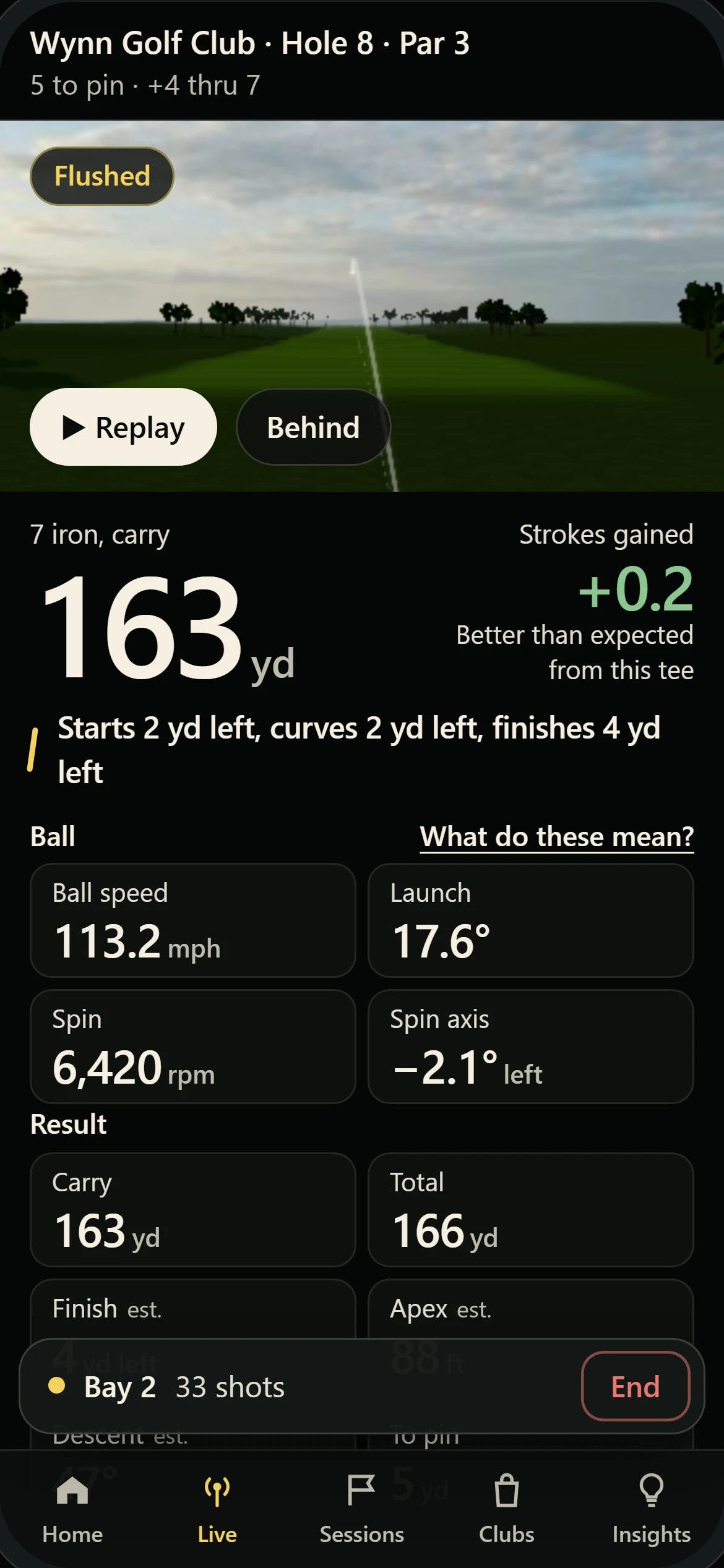
Every shot, as they hit it
Each shot lands on their phone as they hit it: carry, speed, launch, spin and how it curved.
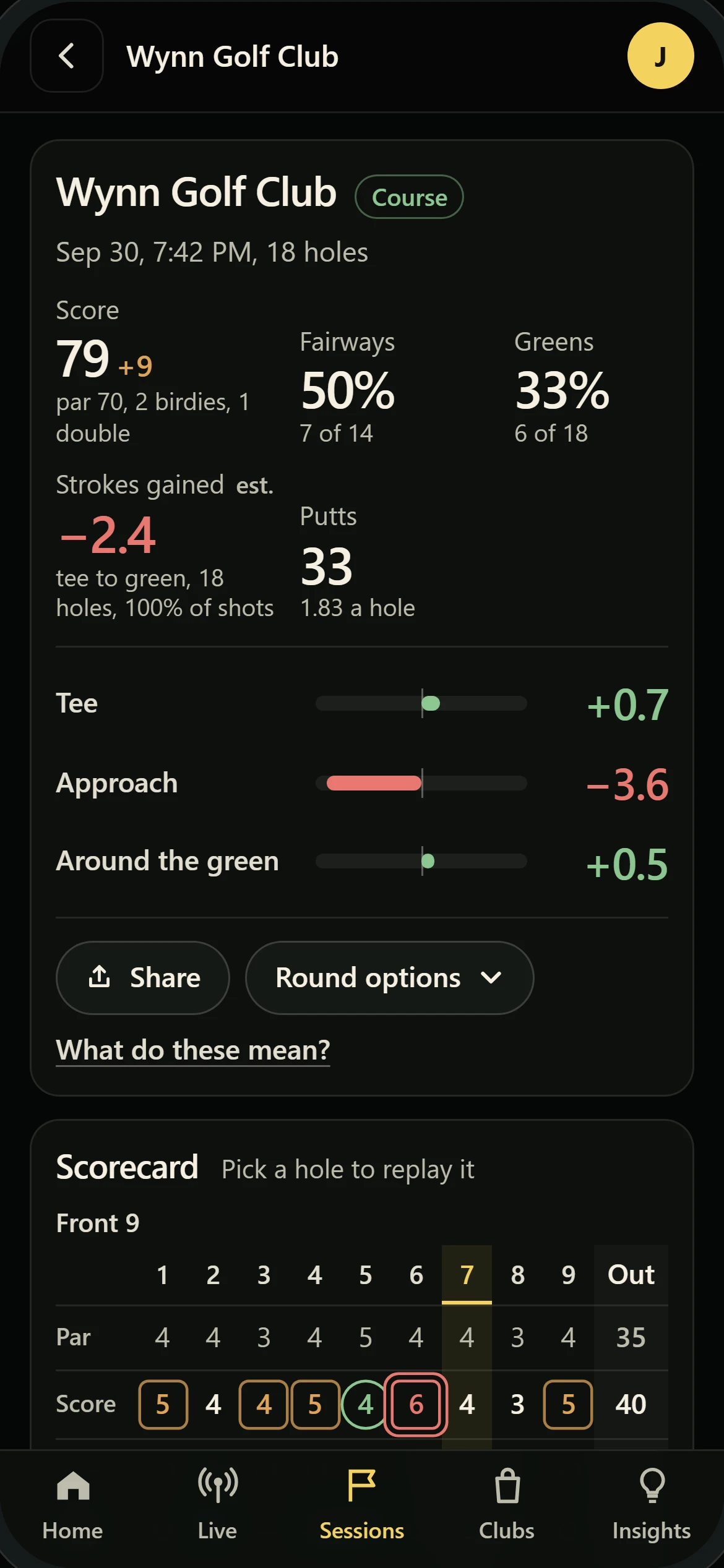
The whole round, saved
Score, fairways, greens, putts and strokes gained, with the scorecard hole by hole.
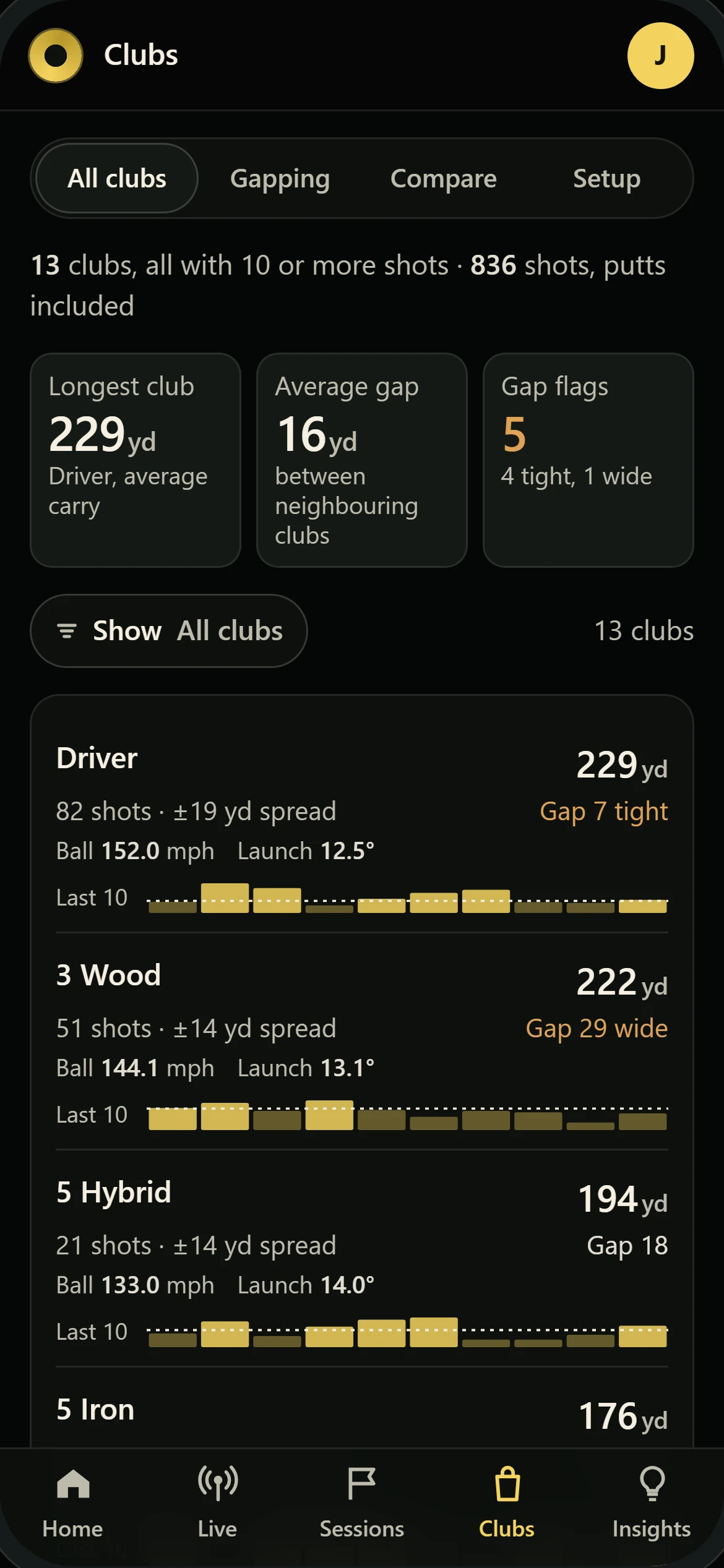
Their distances, club by club
Real carry for every club in the bag and the gaps between them. Sharper every visit.
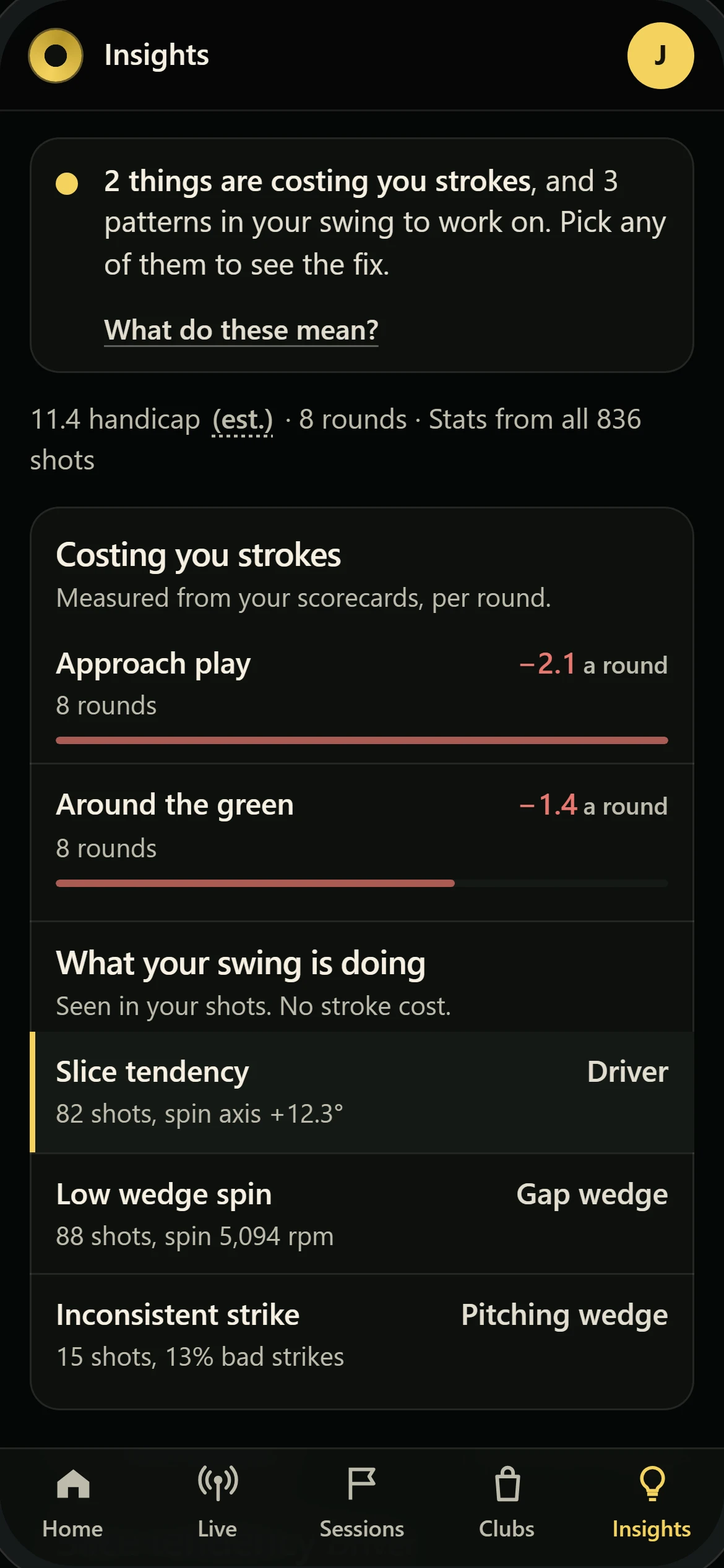
What to work on next
What is costing them strokes and what their swing is doing. A reason to book the next session.
The full app. Nothing held back.
The same GSCaddie home golfers run on their own sims, with every feature. Their numbers come from your bays.
- Live shot viewEach shot on their phone as they hit it
- Every session savedRounds and range sessions, all kept
- Round detailScorecard, hole by hole, shot by shot
- Strokes gainedOff the tee, approach and around the green
- Ball flight replayA 3D replay of every shot
- Shot logEvery swing, filtered and sorted
- Clubs and gappingCarry, spread and the gaps between clubs
- Club compareTwo sets of swings side by side
- Insights and drillsWhat is costing strokes and how to fix it
- Trends over timeEvery club and stat, visit after visit
- On their home sim tooThe same account, wherever they play
- Nothing to payNo price, no trial countdown, no payment screen
Want to look around first? Try the app the way your members see it, with sample rounds.
Try the demoOne scan at the bay
A printed placard on each bay. Members scan it before their first ball, then play like they normally do.
- The first scan sets up their account in about a minute. After that it is one scan a visit.
- Their account follows them to every bay in your room, and to their own sim at home if they have one.
- Works with the GSPro bays you already have and the launch monitors on them.
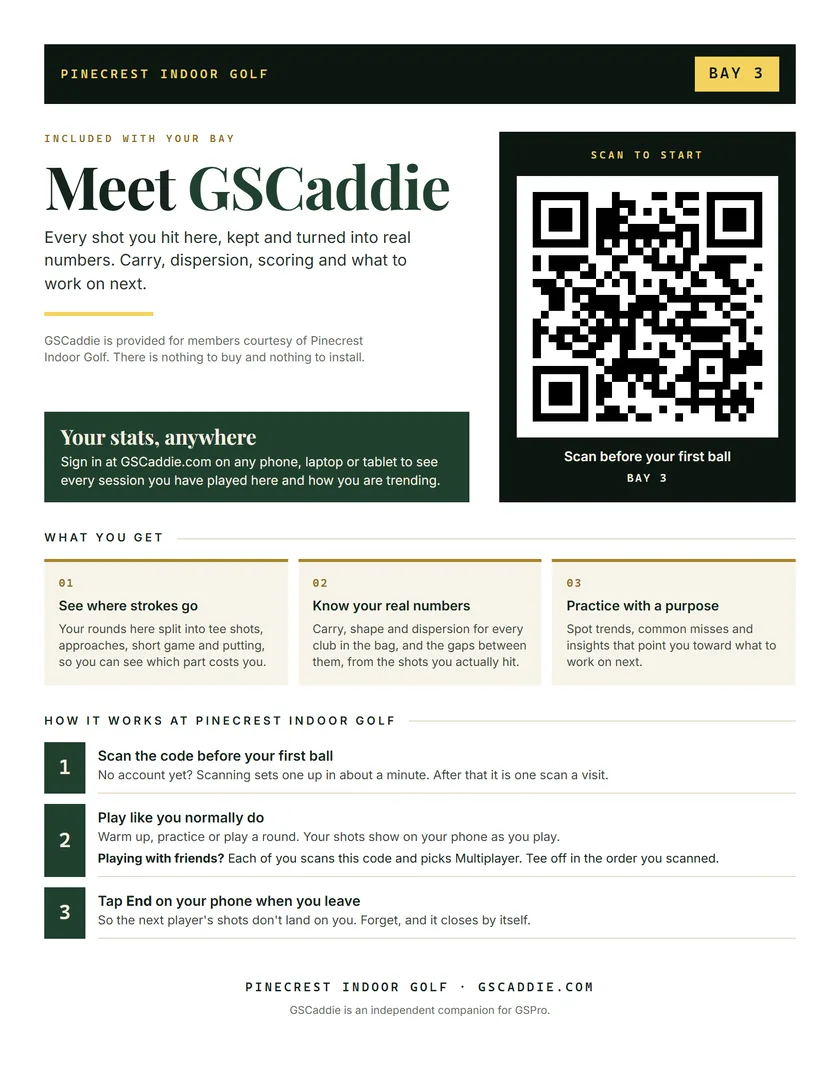
The placard, as it prints. One letter page per bay.
A weekly challenge on every bay
Pick a challenge, a course and a prize. Members are on the board the moment they play, and GSCaddie scores every entry and keeps the board current all week.
- Closest to the pin
- Long drive in the fairway
- Best gross score
- Most fairways hit
- Bingo
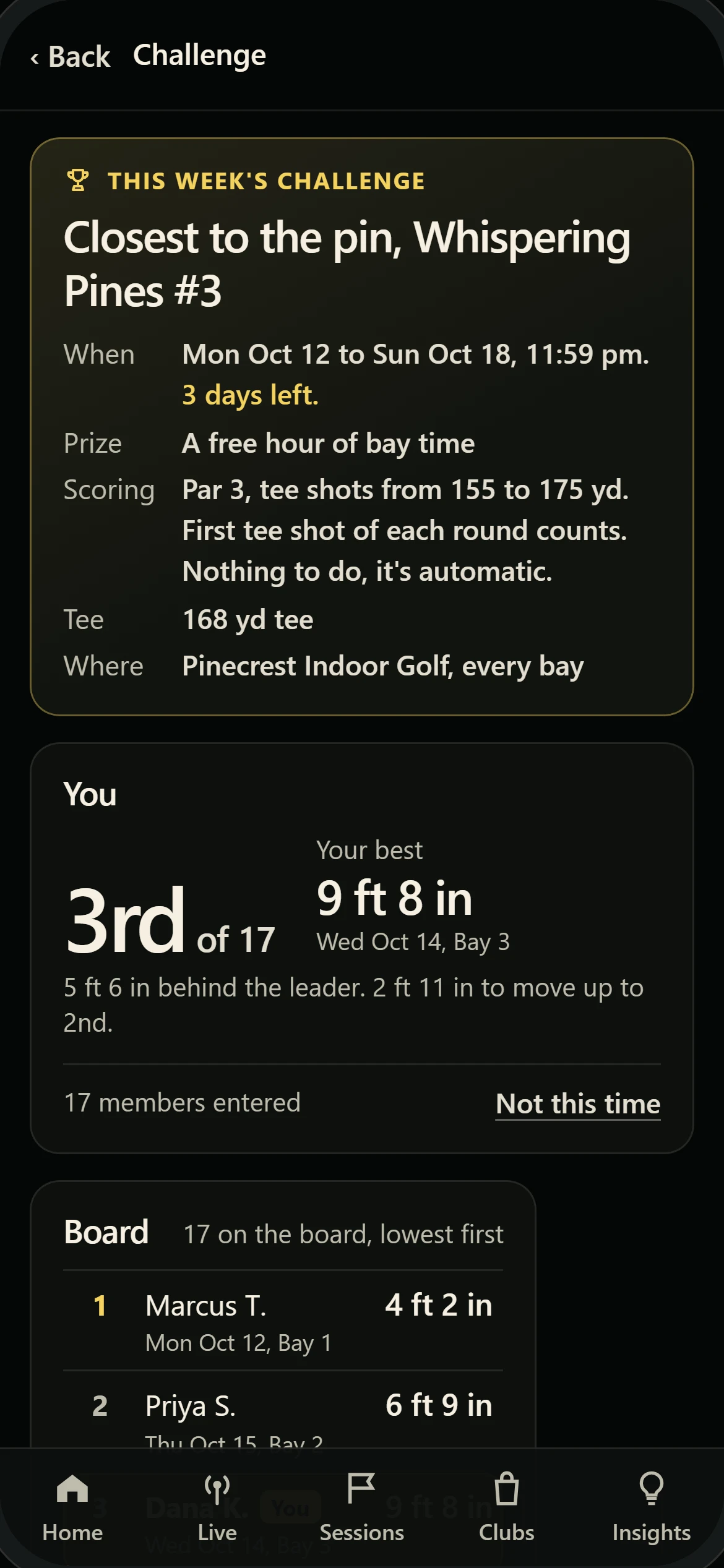
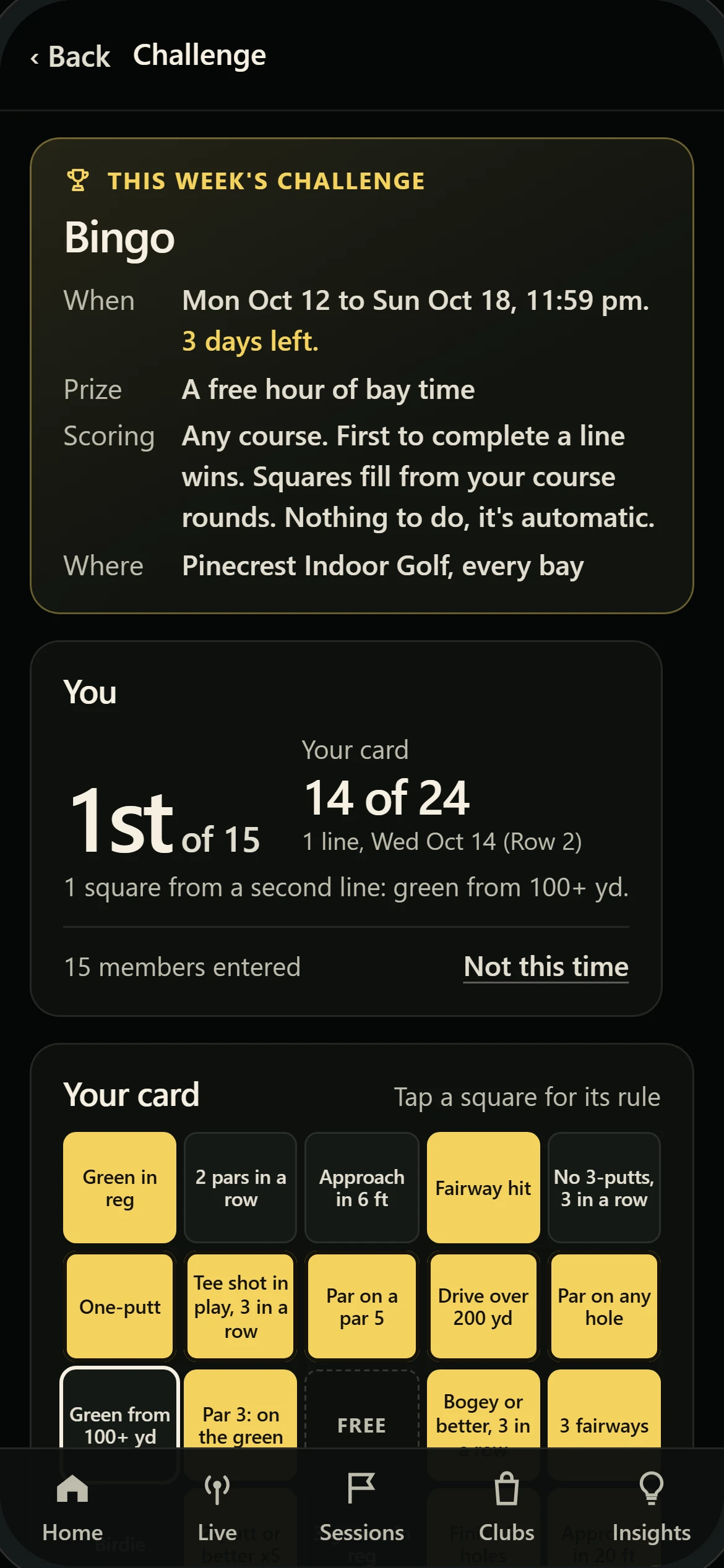
You set the dates and the prize. Approve every entry yourself, or let it run on its own.
Your bays, on one page
Who is on each bay right now, which hours fill up, and which members keep coming back. Open it from any browser.
Right now, and the last four weeks
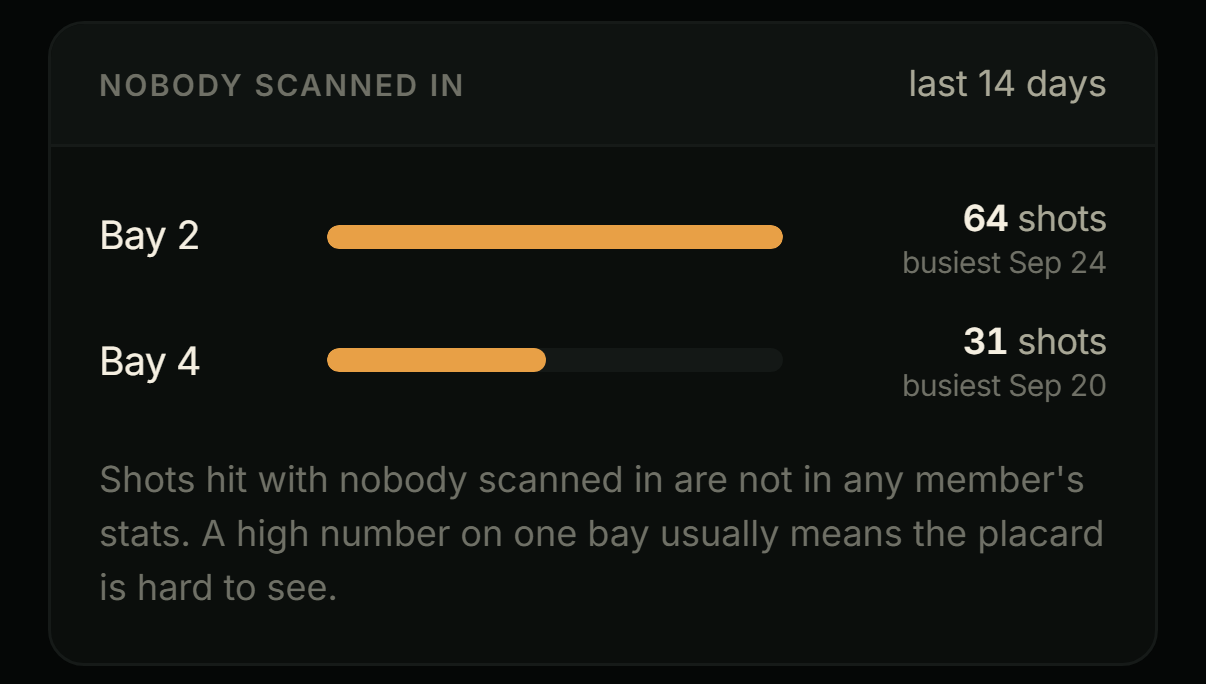
Every bay and who is on it, visits this week against last, busiest hours and days, hours used per bay. Shots hit with nobody scanned in are counted by bay, so you know when a placard is hard to see.

You decide who is in
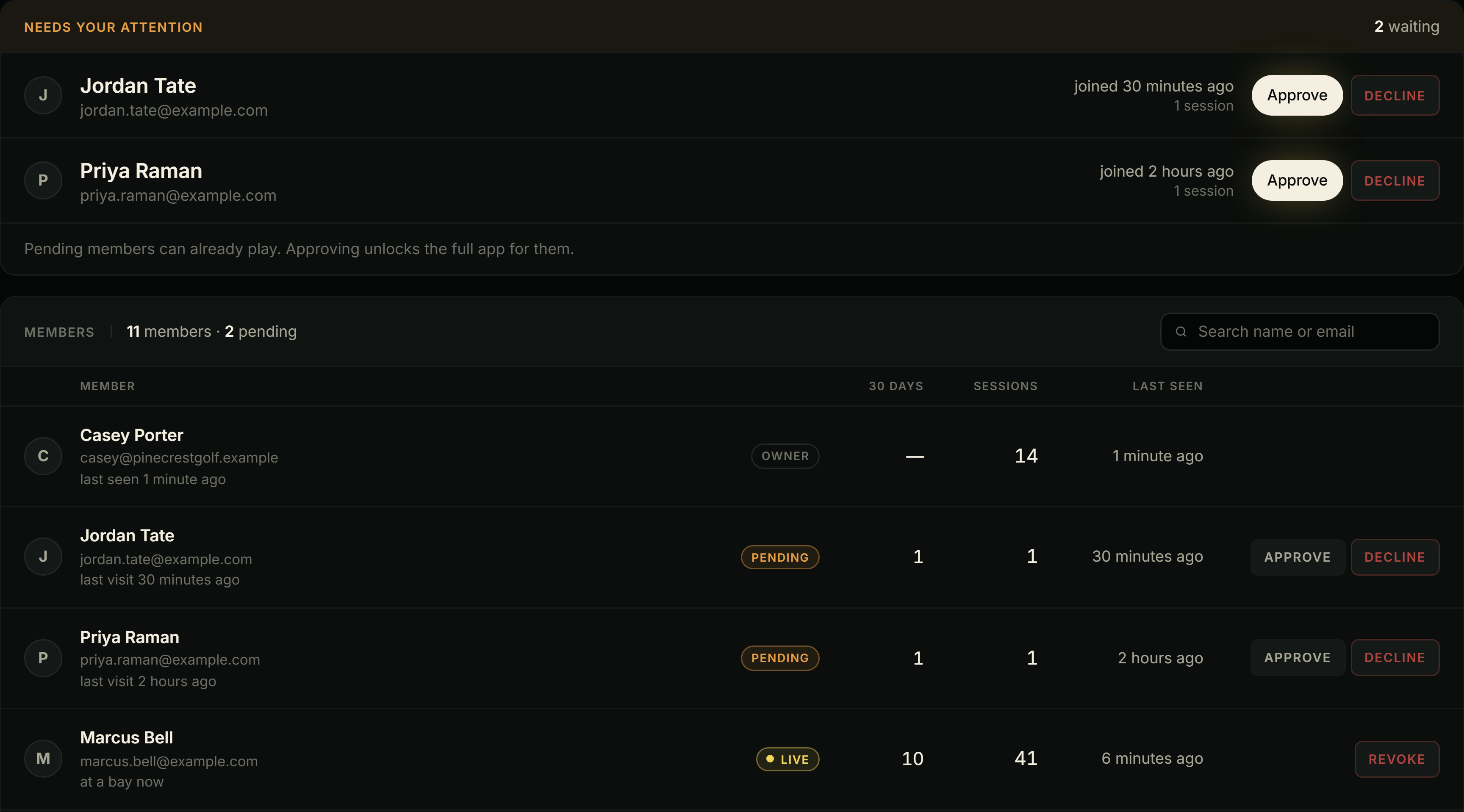
New scans wait for your approval, and pending members can already play. Approve with one tap, revoke anyone, any time.
Coach from their numbers
Tap a member for their swing tendency, strokes gained leaks, patterns, clubs, round scores and league handicap, over the last few days or the last few rounds.

See it for yourself. Click through the owner pages of a sample facility, with its members, bays and challenges.
See the owner sideYou can see members' golf. You cannot change it. Accounts belong to the members. Revoking someone removes their access to your facility, never their data.
Already running at
These facilities helped shape GSCaddie Facility, and their members use it on every visit.
- Downtown Toronto, ON
Bunkerville
410 Adelaide St W, Toronto, ON
bunkervillegolf.com - Tumwater, WA
The Golf Loft
125 Tumwater Blvd SE, Suite D121, Tumwater, WA
golflofttumwater.com
Running in 30 minutes
It runs alongside GSPro on the bay PCs you already have. Do it yourself, or we walk you through it.
Join the waitlist
We get in touch and set up your facility. Do the rest yourself, or have us walk you through it.
Put GSCaddie on each bay PC
Download it from your dashboard and choose facility bay setup. Claim and name each bay from your phone.
Print a placard per bay
One click, with your facility and bay name on it. Tape it where members can see it from the mat.
Members scan and play
The first scan creates their account. You approve new members from your phone.
Every bay's health
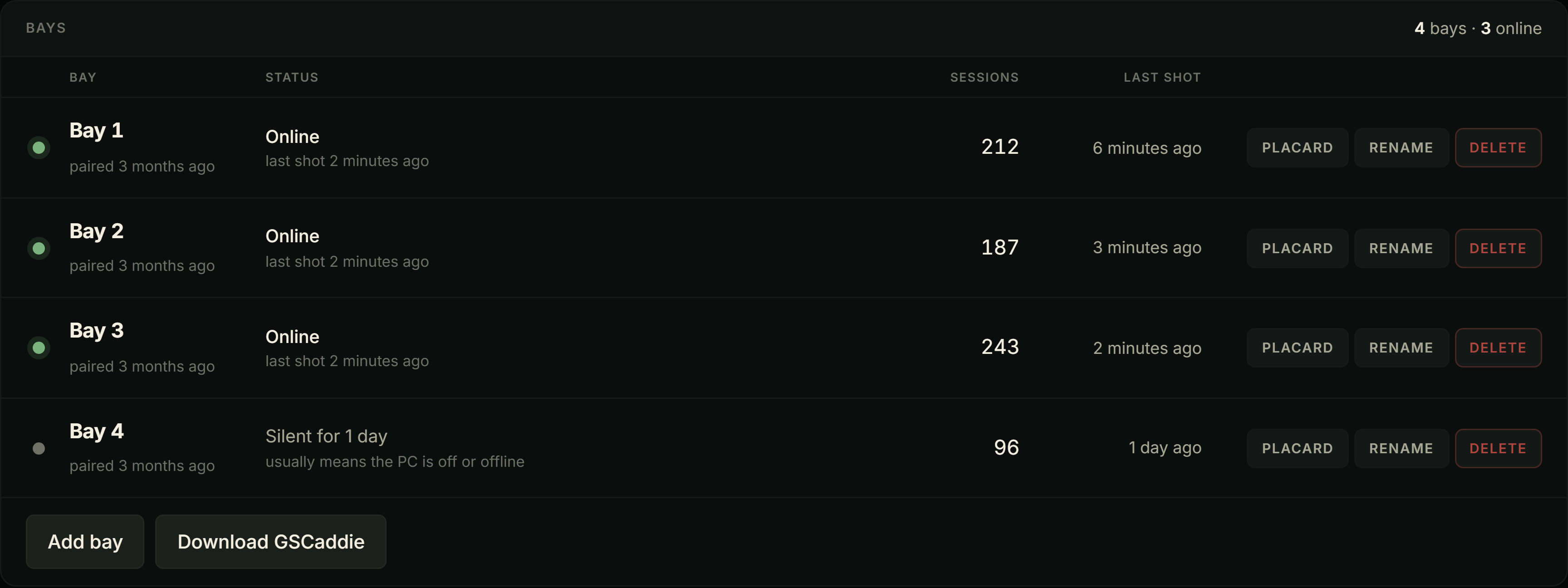
Which bays are online, sessions per bay and when each one last recorded a shot. A bay that goes quiet tells you so.
On the bay screen, above GSPro. Enlarged to read here.
See who a bay is recording for
After a member scans in, every shot on that bay goes to their account until the session ends. If they walk out without ending it, the next group's shots land in their stats. The widget stops that.
- Shows who is being recorded. A small card in the corner of the bay screen: the member's name, shots and minutes so far.
- Anyone can end it. The next group taps End session and starts clean.
- Ends itself. 10 minutes after a member finishes a round and stops hitting.
Never takes over the game or keyboard. Shows a name and shot count, never scores or stats. On for new facilities, one switch on the Admin tab. With it off, a session ends when the member taps End session on their phone, another member scans in on that bay, or 30 minutes pass with no shots.
Be one of the first facilities
Tell us about your room and we will email you to pick a start date.
One flat monthly price. Every tab, every bay, every member.
Included:
- A placard per bay, printed from your dashboard
- Weekly challenges across every bay
- Members, Business and Admin tabs
- Every member's own full GSCaddie account
30-day satisfaction guarantee.
GSCaddie Facility is coming soon, and we are bringing facilities on from the waitlist. Join it and we will email you to pick a start date.
Your bays already make the data.
Hand it to your members.
Join the waitlist and be one of the first facilities on GSCaddie.